
To make managing lunch balances and school fees easier, Infinite Campus allows parents to set up recurring payments directly through the Parent Portal. This option provides a convenient, secure way to ensure your child’s account always has funds available without needing to remember individual payments.
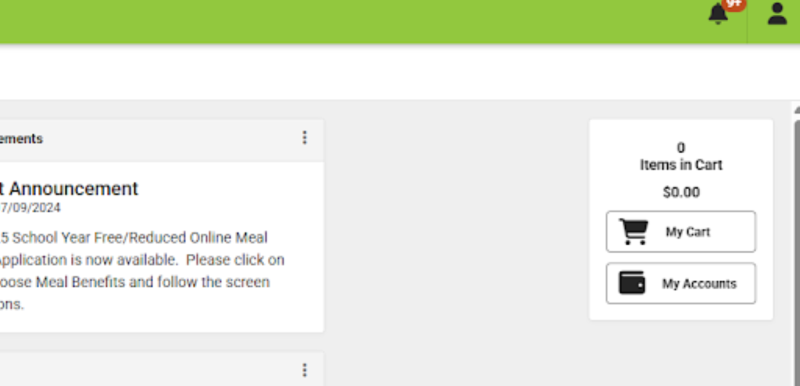
Below you’ll find step-by-step directions on how to set up and manage recurring payments in your Parent Portal account. When signing into Parent Portal, you will see My Accounts in the upper right corner of the Home Page. You will click on My Accounts.
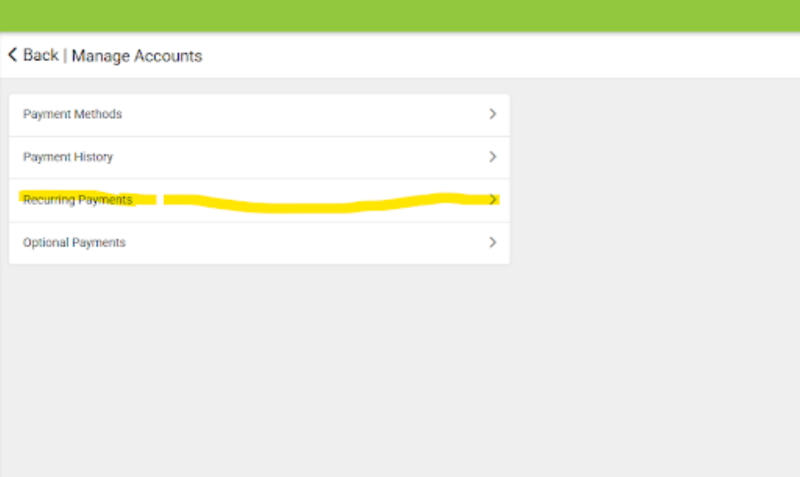
 You will then be taken to Manage Account and you will click on Recurring Payments.
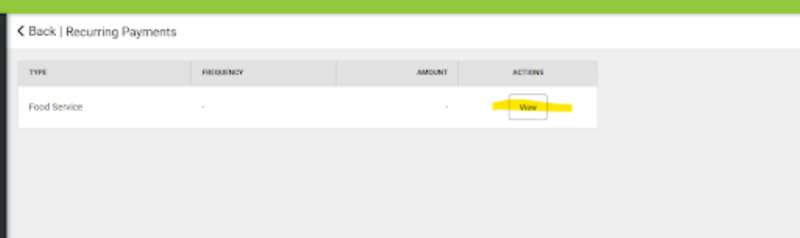
 The next screen will show you Food Services, click on View.
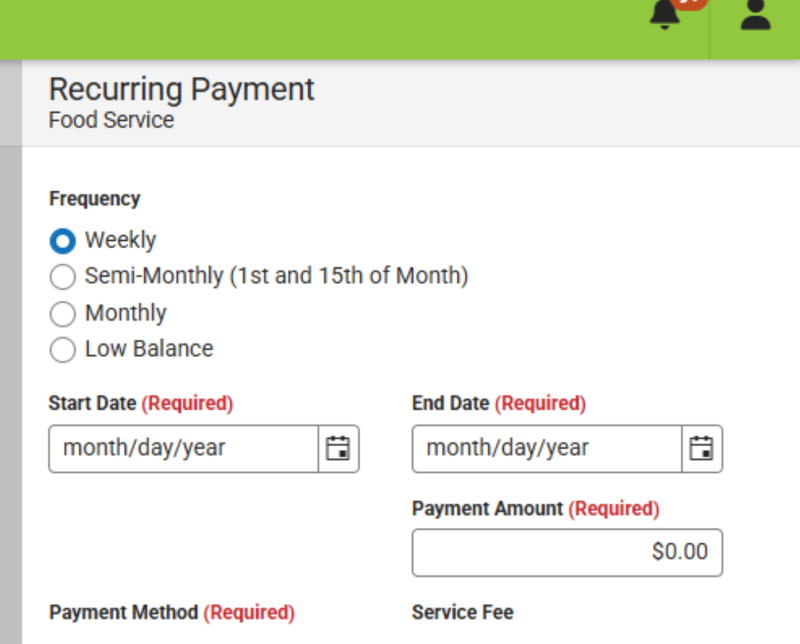
 A slide out window will appear to the right of the screen. This is where you will choose a Frequency and create your Recurring Payments.
Meal Balance Push Notifications
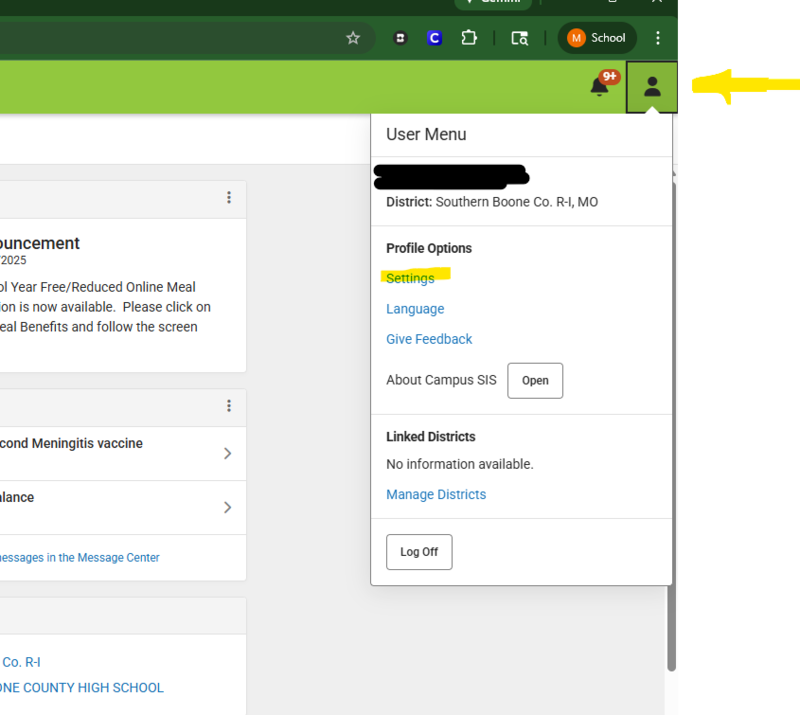
Parents also have the option of setting up meal balance push notifications in their Parent Portal in Infinite Campus. Click on your portal profile in the top right hand corner, then click on settings.
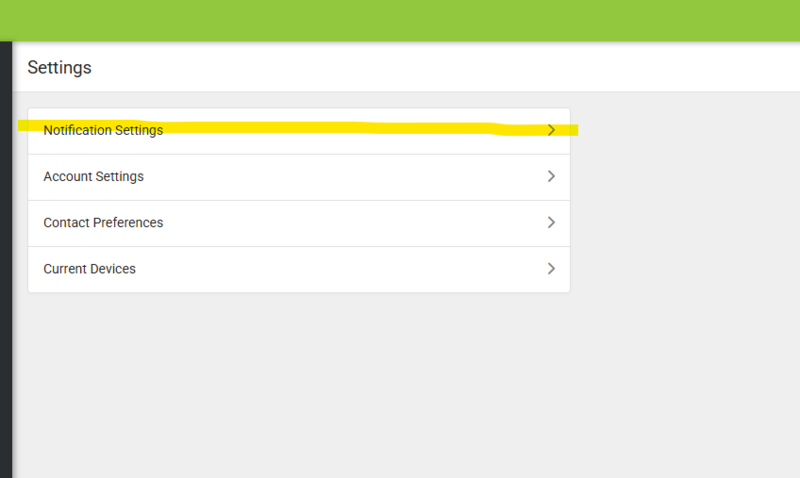
Under settings, click on Notification Settings.
Finally, click in the box to turn on Lunch Balance is Low Notification and use the slide bar to choose the Less than Amount in which you want to be notified. Click on the Save button at the bottom of the screen.
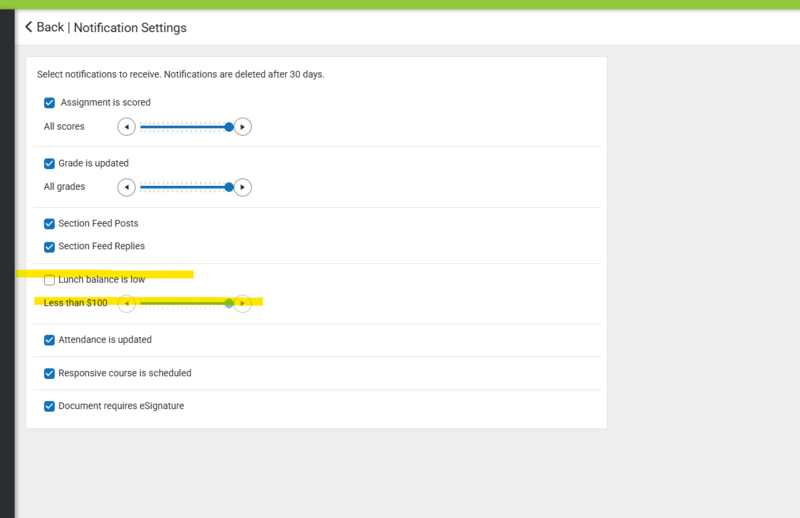
Once this is turned on, parents will begin receiving Push Notifications when a meal balance reaches the amount you have chosen.